
Who uses the Portal
Different roles in your team will use the Portal for different purposes:- Developers — Create and rotate API keys, configure environments, and monitor integration performance.
- Product managers — Review usage statistics and user engagement metrics.
- Support teams — Manage cases, view logs, and assist with troubleshooting.
Getting started
1
Log in to the Portal
Go to app.squire.eu and sign in with your personal credentials.
2
Invite your team members
Navigate to the team settings and invite colleagues by email. Assign each person the role that matches their responsibilities.
3
Contact support if needed
If you need additional access levels or have questions about permissions, reach out to Squire support directly from the Portal.
Managing API keys
API keys authenticate requests from your backend to the Squire API. You use them to obtain short-lived access tokens that initialize the Squire SDK for individual users.Navigate to API keys
Open the Settings section in the Portal and select API Keys.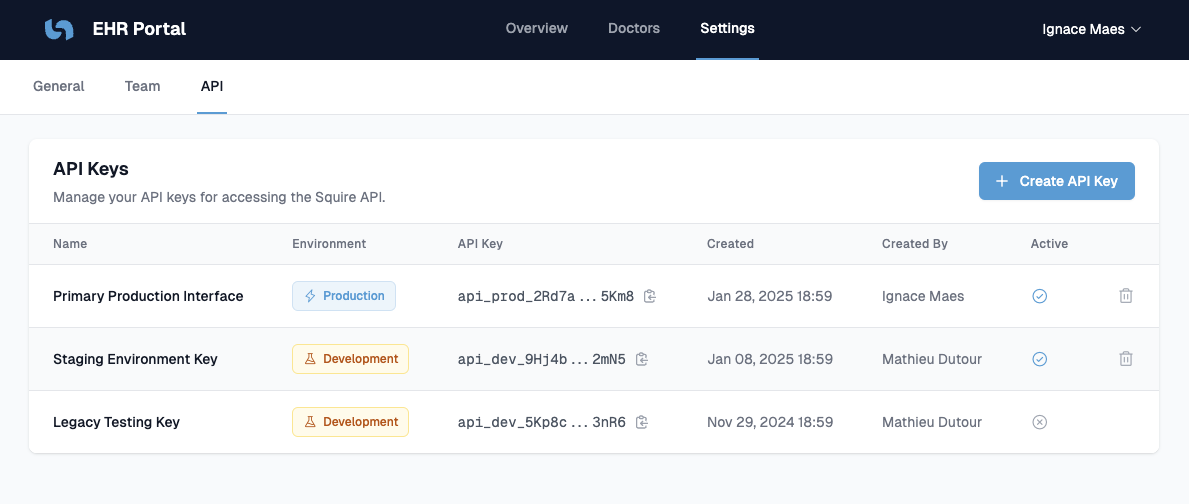
API keys management interface in the Squire Portal
Create a new API key
Click Create API Key in the top-right corner and fill in the following:- Environment — Choose the environment this key will authenticate:
staging— For development and testing. Use this key while building your integration.production— For live users. Switch to this key when you go live.
- Key name — An internal label to identify this key within your team (for example,
EHR Backend – Staging).
Store your API key securely
Your API key is a private secret. Treat it like a password. Store the key as an environment variable or in a secrets manager (for example, AWS Secrets Manager, Azure Key Vault, or HashiCorp Vault). Reference it in your server code at runtime rather than hardcoding it.Rotate a compromised key
If you accidentally expose your API key, act immediately:1
Create a new API key
Go to Settings > API Keys and create a replacement key for the affected environment.
2
Update your backend
Deploy the new key to your server environment so token requests continue without interruption.
3
Revoke the old key
Delete the compromised key from the Portal to cut off any unauthorized access.
Revoking an old key immediately invalidates it. Make sure your backend is using the new key before you delete the old one.